Showing posts with label Launch Sitecore. Show all posts

Saturday, February 7, 2015

10 Days of Sitecore 8 Analytics. Day 3: A Picture's Worth a Thousand Words

Main point for today

OK, I admit it.  On my recent posts I faked my picture of Abraham Lincoln in my Experience Profile.  I didn't even use PhotoShop; it was just a cheap SnagIt copy-and-paste.  But now, here's the real deal:
A true Abraham Lincoln Sitecore Experience Profile Contact
Why is this such a big deal Mike?  Two reasons:

  1. Looking into how to add a contact's picture to the Sitecore Experience Profile reminded me of how incredible the Sitecore community is.  There are great blogs going back months (from people much more talented than I am) that discuss this subject in great detail.
  2. The main purpose of this blog series was to investigate the power of xDB.  I've been around reporting requirements long enough to know that power comes from modeling whatever it is you want to model, viewing it in whatever way you want to view it.  While my adding a picture here is a tip-of-the-iceberg kind of moment, it will hopefully get the creative juices flowing (it did for me).

About that community

First and foremost, two top examples of how great the Sitecore community is, and representative of much more thorough discussions of this subject than I will have here today:
  1. Anything by Adam Conn is great.  This is a series he did back in September (which shows how far ahead of the curve he is) that does a great job explaining developing against xDB.
  2. Sitecore's great partner, Horizontal Integration, does a fantastic job of showing code samples.

My summarized steps to get Mr. Lincoln's picture in my Experience Profile:

There are much better posts around all things Mongo, development in Sitecore and xDB, etc.  This is my quick list of things that I went through as I investigated this task, using just the information from the above two blogs.

Step 1.  Learn enough Mongo to become dangerous.

As you get into xDB within Mongo, you'll gravitate to the Contacts and Interactions collections.  As you're using RoboMongo or MongoVue or your tool of choice, you'll find yourselves wanting to query the collections for your documents.  Again Adam Conn comes to the rescue with an explanation of how to use ID based queries.  Here are a few find() statements that also helped me:

db.Identifiers.find({"_id" : /extranet\\abr?/i})

In this example, my Identifiers collection has a link between my Contact ID and Abraham Lincoln's Sitecore user record.  The above uses a Regular Expression since in this case the _id field seems to be a string (as opposed to Adam's description of how to deal with identifier types in the Contacts collection).  The RegEX looks for user in the extranet Sitecore security domain, staring with "abr" and case insensitive ("/i").

db.Contacts.find({"Personal.FirstName" : "Abraham"})

Switching to a find in the Contacts collection, above is a way to find a value in an embedded document.  Contacts have a "Personal" document, with an embedded document that can include FirstName and LastName.  The Personal.FirstName syntax allows me to find a value of "Abraham" within.  This could be another use of a RegEX as used in the first example.


db.Contacts.find({_id:new BinData(3, 'zgZHZ6RszESnllHXYIuUrA==')})

Adam's blog will really explain why we need to set up a find query in this way for the Contacts collection.  The example above is just an easy copy and paste (changing out the resultant ID for your system).

Step 2.  Look at an example of a Contacts document.


{
    "_id" : LUUID("4332583d-d8df-3a5c-6382-4cb8037a15f3"),
    "System" : {
        "IntegrationLabel" : ""
    },
    "Identifiers" : {
        "IdentificationLevel" : 2,
        "Identifier" : "extranet\\mike@test.com"
    },
    "ConversionInfo" : {
        "WasConverted" : true
    },
    "Lease" : null,
    "Personal" : {
        "FirstName" : "Mike",
        "Surname" : "Casey"
    },
    "Emails" : {
        "Preferred" : "work",
        "Entries" : {
            "work" : {
                "SmtpAddress" : "mike@test.com"
            }
        }
    }
}

The above document has some entries based on some typical activity on our Launch Sitecore site.  For instance, by registering we've gathered some "Personal" values and "Emails" values.  Notice there is no Pictures section of this document.  As expected with this NoSQL strategy, the document continues to build as information is collected.

Step 3.  Understand a bit about facets

As Adam explains, the Experience Profile makes use of Contact "facets".  As of Sitecore 8, the Sitecore.Analytics.Model.Config file contains the default facets, as shown below:
Default Facets in the Sitecore 8 Sitecore.Analytics.Model.Config

Since "Picture" is already an available facet, nothing to do here.  Adam explains the process of adding new facets and leveraging those new facets in a new SPEAK-based tab on the Experience Profile.

Step 4.  Get some code to write to the Picture facet

Still getting my terminology straight here, but basically we want to add a Picture section to that original Contact document shown in step 2 for Abraham Lincoln.  Thankfully, our friends at Horizontal Integration have already done the heavy lifting here:
Horizontal Integration Code to write to the Contact's Picture
As an aside, you'll be likely looking for some assembly references to use the above, so just in case:


Now, by having a Media Library item with Abraham's picture and replacing the GetItem statement above with its GUID, we're good to go.

Since this isn't a real-world example and just an investigation, I went ahead and created a control that just runs the above code when I visit my page on my local Launch Sitecore instance.  I'm really interested in the real-world sources for this picture--social, CRM, etc.  And now I'm more interested in taking the next steps in understanding the power this type of access to xDB unleashes in Sitecore 8 projects.  I'll leave you with the new section of the Abraham Lincoln Contact document:
Abraham Lincoln Contact Document with Picture


And now we can see good 'ol Abe's smiling face when we access all the great detail of his Experience Profile (and no copy-and-paste this time around!):
Searching for Abe and seeing our new picture facet


Tuesday, February 3, 2015

10 Days of Sitecore 8 Analytics. Day 2: Insights from the Experience Profile

Introduction to today's discussion

The Experience Profile is a new Sitecore view into analytics that provides incredible insight at a visitor (Contact) level.  From pages viewed, to patterns / personas matched to campaigns triggered to goals achieved, the Experience Profile paints a full picture of your visitors' interactions with your brand.

Today we'll take a bit of a deeper dive into this Experience Profile.  For those of you on the tech side, this view shows the power of what SPEAK interfaces can become in Sitecore, and as we get to the end of this series we'll see the ability to customize these views, add tabs to the reporting interface and more.  For this post I wanted make sure that some of the simple goals, campaigns and page events in our Launch Sitecore site are ready for the Experience Profile, and ready for those deeper conversations.

A reminder of what the Experience Profile looks like and what we'll be drilling into

Experience Profile with the Contact Timeline showing

Marketing Control Panel Considerations for the timeline


Campaign

For this exercise, I set up a new Campaign in Sitecore's Marketing Control Panel (as everything now is, one click away in the Sitecore 8 Launch Pad).  To those familiar with DMS, this is the same idea as the Marketing Center, the area of the content tree dedicated to setting up marketing initiatives.  I set up a new Campaign to track called "Video Blog Campaign" (our team is working on demo and other instructional videos that we plan to have a home for soon).


Some things to note that have been added to Sitecore 8.  The Campaign Group is a drop-down selector to allow us to start considering a richer taxonomies for our campaign organization.  This will become important later as we start looking at Campaign reports.  I added a new Campaign Group (Mike Campaigns) in this Taxonomies section, and it became available in the Campaign Group drop-list as I set up the Video Blog Campaign itself:

New Taxonomies Section for Campaign Management
  

Goals and Page Events

We can keep the goals we already have in place for Launch Sitecore.  These represent simple "transactions" that we are trying to encourage our visitors to take part in, like downloading the Launch Sitecore package, visiting certain targeted pages, adding articles to a logged in user's persistent profile:
List of Goals for LaunchSitecore.net

One interesting addition to Goals is shown below:

A Goal item shown in the Content Editor
Note that a new "Experience Profile Options" section with two checkbox field are now available for Goals (they are also available for Page Events).  This gives us the option to make sure these goals / conversions are prominently displayed on our Contacts' Experience Profile Reports.

With these simple Campaigns and Goals in place (and making sure all of these items are Deployed and Published), we can now start to see Abraham Lincoln's visit history start to take shape.

Below is a section of the Timeline where we can start to chart various interaction points with our Contact:

The Timeline gives us visual cues representing Goals achieved and Campaigns triggered.  It gives us a bar graph indication of value for the various visits from our Contact.  Below the Timeline we are able to see specific Goals achieved, the nature of the Campaign that was triggered, Page Views, Value and more.

Since we had many of the Digital Marketing considerations in place with Launch Sitecore (which started on Sitecore 6.6), we were able to ready the site for new Sitecore 8 features very easily.  The public site at launchsitecore.net is now on Sitecore 8 and tracking all this great Contact data so that we can enjoy the new insights that the Experience Profile and other analytics views provide.

Tuesday, March 18, 2014

A Sitecore 7.2 feature worth the wait: Search-driven controls

As always, I want to provide both the technical and business benefits to a discussion topic.  I've written about this use case in the past, but with Sitecore 7.2 there is now an out-of-the-box feature that it makes the solution to it very straightforward and available to both the business and technical sides of the house.

Basically, since Sitecore controls are so flexible and can bind to a "datasource" based on any number of conditions, the ability to use search interfaces and results to drive this datasource is a natural improvement to the platform.

So take for example the controls on the right hand side of this page:

A Launch Sitecore "Contributor" page with added controls in the right column

The Articles control at the top is set up to look at a specific field of this "contributor" content type / data template.  All Articles have a checklist field so that we can appropriately credit our contributors with their article contribution.  In this way, the control is going to always show a full list of my articles without my having to go back to our development team and rework the control every time I write a new one (which, at any rate, is not all that often).

Similarly, the control below the articles control shows another list.  This list can be driven by a pre-built query against the entire content tree.  I've always been a fan of this technique, as we can create a nice bridge between our development team and our business team.  The business folks could describe in words what they want:

"I need a list of a all articles that have been tagged for Marketers".

Developers (or really anyone that has become familiar with Sitecore queries could come up with something like this item:
A pre-built search query item


In reality it isn't even necessary to be familiar with this search syntax since the "Build Query" feature within this Content Editor view would allow you to use the search interface within Sitecore to prepare the pre-built query item.  Once the item was built, now the business folks could use this item as a datasource for the control and our use case solution for an ongoing dynamic query control would once again be complete.

(In older solutions to this use case, we used the same technique as above, but used Sitecore Query notation).

Now, in 7.2, using these search queries as control datasources is even more cool and direct.  Let's rework the control on our page.  The good thing is, Chris Castle's Launch Sitecore control is already written so well that it doesn't need changing:

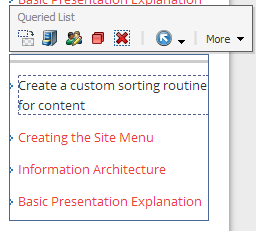
Selecting the LS Queried List control for our page

As the dialog appears to select an associated datasource for the control, we can see that we now get the ability to Search for Content on the left (previously we would have chosen a specific content item):

Searching for associated content

There are two areas we could use here to come up with our result set.  The right hand side of the screen will show us the available facets (template, date range, author, etc.).  These facets are impressive by default and fully extensible to enable the inclusion of specific attributes important to your business.  In addition, the drop arrow on the left of the search box provides a choice to use pre-built search filters.  For the example below, I'll use this technique to choose:
  • Items that match the Article Data Template (they have to be Launch Sitecore articles)
  • Items that were initially created by Mike Casey
Both Template and Article are pre-built search filters, so I can easily choose them from the list.  There's also a nice "intellisense"-like feature that allows me to start typing and see available options based on my keystrokes.

Setting up the search query with pre-built search filters
If I click on the magnifying glass to run the query so far, I notice I have 65 results:

Initial search results for Mike Casey as author, Article as Data Template

My team will tell you that I haven't contributed nearly that many articles.  In fact, in the Template facet on the right, we see that of the 65 items returned, 22 were articles, 9 were images, and so on.  By default this is a logical "or" query, so we're getting too many results for our list's purpose.

By clicking to the left of each chosen search filter, we can toggle through a "must have", "must not have" "can have" logical operator set.  For our list, we want to ensure that both filter criteria are true:

Tweaking the query with logical operators
With the "Must Have" criteria in place and by clicking the magnifying glass again, we get the expected four article result, and we are satisfied with our search query:

Finished product

Now think about the fact that you can set up personalization or multvariate tests on this control using different search criteria.  The search criteria can be coupled with any other conditions Sitecore has access to (GeoIP, campaign, etc.).  You're off an running with a truly dynamic experience for your visitor.
 

Snippet for the Developers:

For the developers, the reason that this already works in your current Launch Sitecore package is that Chris Castle thought through the various datasource items that might be passed.  Here is a little snippet of the resulting logic if the datasource is deemed to be a query string (rather than a specific item GUID).  This full code is available via the DataSourceList.ascx control in the project:
 
        // if the datasource was not a query item try to process the datasource as a query
try
{
//Open search context based off the current item
using (IProviderSearchContext context = ContentSearchManager.CreateSearchContext((SitecoreIndexableItem)(Sitecore.Context.Item)))
{
string languageCode = Sitecore.Context.Language.CultureInfo.TwoLetterISOLanguageName.ToString();
IQueryable<Item> queryable = (from toItem in LinqHelper.CreateQuery(context, UIFilterHelpers.ParseDatasourceString(Attributes["sc_datasource"]))
where toItem.Language == languageCode
select toItem.GetItem());

// the master index will have each version so we need to remove the duplicates.
if (Sitecore.Context.Item.Database.Name.ToLower() == "master")
return queryable.ToList<Item>().Distinct(new ItemIDComparer()).ToList<Item>();
else
return
queryable.ToList<Item>();
}
}

Wednesday, March 12, 2014

Preparing for your next great Sitecore Engagement Plan

In every partner and client session I facilitate, we inevitably spend a lot of time talking about Sitecore Engagement Plans.  It's a fantastic platform feature that ties all the pieces of a Sitecore digital marketing discussion together--from considering why a site exists in the first place to laying out the goals we want our visitors to achieve to the actions we want to take in the process of creating hugely successful digital campaigns and experiences.

By the time we're talking about Engagement Plans, though, I've realized that we've already covered a ton of information.  Sitecore's feature map is incredibly impressive and always too much to fully consider in one sitting.  When I started facilitating these sessions, I tried to have the group go through the actual mechanics of setting up an Engagement Plan in the system.  While these mechanics are straightforward, I realized over time that the importance of the discussion wasn't about the points and clicks to create the Engagement Plan in Sitecore--it was the about the customer journey we were setting out to model.

So, a very simple thing hit me over the head--start with a Visio template to act as the brainstorming tool.  While I still recommend in most cases just diving into Sitecore and creating Engagement Plans directly, I wanted to offer this file in case it helped anyone with their brainstorming sessions along the way.

Download the Visio Template Here.

The Visio diagram is a model of our Launch Sitecore Engagement Plan described here.  With this, you can quickly brainstorm:

  1. States along your Engagement Plan / Customer Journey
  2. Actions to take as a visitor transitions from State to State
  3. Conditional checks to determine whether a visit should move to a new State
  4. Customer experience as it relates to a particular state (personalization rules if a visitor is in that State)
  5. The behavior you are trying to drive, the endgame, the Goals.

Friday, January 31, 2014

A New and Improved Engagement Plan for Launch Sitecore

While Chris Castle, Brandon Royal and others were busy getting the new Launch Sitecore site out the door, the N. American Sales Engineering team at Sitecore got together to review our first implementation of the digital marketing features of our site.  Our goals have always been clear with Launch Sitecore--provide the best software evaluation vehicle in the business.  Allow folks to download the full site, support them as they dive into it and get to the next level of understanding and questions.  Provide a clean and simple framework to strategize much more complex real-world situations.

I always feel that the Engagement Plan discussion in Sitecore can become the centerpiece for the larger digital strategy discussions for the platform.  There's something about specifically discussing customer journey paths in the tool that expands ideas while focusing purpose.  Engagement Plans become the hub for modeling visitation flows, for defining integration points and messaging, for clearly identifying compelling personalization possibilities and more.

In our first iteration of our Launch Sitecore Engagement Plan, our flow was ultra-simple.

  1. Entice registration
  2. Convince visitor of the benefits of downloading the Launch Sitecore site package
  3. Provide a feedback loop
As a summary, "create incredibly valuable evaluation experiences for our prospects".  We had other side goals, but in essence our site existed to provide access to this great evaluation package, and everything we focused on was a funnel around that endpoint.

For this release, our goals are significantly loftier.  We started discussing our Sales Engineering Team goals in a broader context, at the company level.  Our team is here to ensure that our prospects have the very best evaluation experience in the industry, that they make the most efficient use of the incredibly small window of time generally dedicated to evaluating a software purchase.  In this window it is our job to show people why we are so proud to represent this platform, showing the balance of the ease-of-use and simplicity of entry points while starting to highlight the incredible platform power that lies deeper in the application.

Our main goal of making our Launch Sitecore download available hasn't changed.  With this release, however, we are setting the stage for the download journey to be the beginning of the path towards our loftier goals.  In essence, we are starting to analyze not only the flow our visitors follow as they navigate the Launch Sitecore content and download the package, but we are looking forward to the incredible insight this will lead to as we evaluate the place Launch Sitecore has in an overall Sitecore selection process.

I'll discuss the new plan in its two major sections.  The first section below is similar to our entire flow in our first version, where everything led to a download of the Launch Sitecore package:

The first "stage" of the new Launch Sitecore Engagement Plan

As you'll note, we don't evaluate every visitor to Launch Sitecore for this plan.  Our first goal, and the event that actually enters a visitor into this plan, is the fact that the visitor registered with our site.  While certain plans lend themselves to create flows for authenticated and anonymous users, our making the download of Launch Sitecore available requires that our visitors provide registration information.

Once again, our main decision point is whether or not our registrant has downloaded the Launch Sitecore package.  This is very easy to evaluate--we keep these downloads available in our Sitecore Media Library, and a request to this item in the Media Library will inform the Engagement Plan that "Yes" path should be followed for the "Downloaded?" question.

Instead of just sitting on the yes/no question about whether our visitor has downloaded, we take the opportunity to further assess his/her level of engagement with the content available in the site.  You'll see terms like "Qualified" and "Engaged" which simply represent our own checkpoints about whether our content is providing valuable results.  For instance, the "Qualified" check represents an overall Engagement Value Points check.  (Has this visitor spent some time, read a bit about our Sales Engineering Team, etc.?).
The Rules Engine Check for a threshold of Engagement Value points

Engagement Value Points may be achieved as our visitors are finding value within the site.  While the value of 7 is our own arbitrary threshold, we decided that it represented a reasonable blend of potential goals and activities our visitor would experience for our definition of "Qualification" or "Engaged".  The nice thing here is that we can use these state transitions as personalization triggers.  A "Qualified" visitor, for instance, will simply get some slightly catered messaging on the bottom of the home page, appreciating the fact that they've spent some time with us and encouraging them to do more.
Personalized messaging on the home page based on Engagement Plan State

So far, so good.  We are now able to consider messaging that will gently nudge our visitor towards the goal of downloading Launch Sitecore.  On to stage 2, where this year we will be striving for much more significant insights around how our evaluation teams decide to select the Sitecore platform.

The future stage of our Engagement Plan represents some great opportunities for this insight.  We know that the success of this part of the Engagement Plan is going to be our connection to our own CRM data (Dynamics).  Take a look at the stages our visitors will transition to, and then I'll discuss the ideas around that very important integration point.
The post-download phase of the Engagement Plan


This set of States represents the success (or failure) of the overall Sitecore evaluation experience.  Sitecore is, and has always been, a fantastic data integration platform.  In contrast to many systems out there, Sitecore never enforces that data be native to Sitecore in order to fully leverage in Sitecore-initiated decision point events.  This Engagement Plan is a perfect example of that.  Sitecore provides an incredible basis for this integration with Dynamics, where contacts that are managed and native to Dynamics become seamlessly integrated with this process modeled in Sitecore.

Since there is so much rich data in our Dynamics environment (opportunities that become prospects, partners, etc.), these contacts should always represent the system of record for these individuals and companies.  Our Engagement Plan will be able to leverage this information to assess State transitions--as our Launch Sitecore evaluators become customers of Sitecore, they will transition based on updates to CRM records and land in the appropriate Engagement Plan state.  We'll get insightful analytics around how our downloads could lead to purchases or how our evaluation flow should improve.

Beyond the incredibly rich Analytics that we'll get in Engagement Intelligence reports, our Engagement Plan itself will highlight these State transitions:
Engagement Plan Monitor Mode for State transitions

Along the way, we can use this Engagement Plan to discuss micro-segmenting opportunities.  A small example below (we don't have a ton of visitors yet) is an example of how I could create a list of all registered visitors who have downloaded Launch Sitecore and live in New Hampshire (note that I found 3 that fit those criteria):

Micro-segmenting with the Dynamic Segment Builder


Much more to come in future posts around this Dynamics integration and the insight we drive from this Engagement Plan analysis.

Friday, March 8, 2013

The power of session-level analytics reporting in Sitecore Analytics

Some background on session-level analytics in Sitecore:


The conversation often comes up when discussing Sitecore Analytics: "when should I use Sitecore Analytics and when should I use xyz Analytics?".  The use of multiple analytics tools, the coordination between them, and/or the decision to standardize on one analytics tool is a significant topic, but from my perspective it's simply important to consider what the landscape of Sitecore Analytics provides.  On the surface:
  1. Sitecore has incredible analytics drill-down capabilities--from a list of recent visits, to all visits from a particular company or source, to an individual visitor, to an individual visit.
  2. Sitecore offers standardized OLAP cube data, and a set of sophisticated business intelligence dashboards
  3. Probably most importantly, Sitecore provides ACTIONABLE analytics.  Your reports are right there in your power tool of content authoring and publishing.  Now you can DO something with that analysis right away.
  4. Sitecore provides incredibly compelling segmentation possibilities.
Together these capabilities span the spectrum of the ultra-specific (an almost Tealeaf style capability of watching an individual session which could be interesting for many situations such as a high-price ecommerce transaction, evaluation of a sample session for usability, etc.) to the ultra-summary (the rolling up and tearing back down based on my own business’ dimensions or facets).

So for today, let’s get ultra-specific.  For those of you that have read other articles about Launch Sitecore, you’ll know that our purpose is pretty specific—create an evaluation package that’s best-in-class so that our prospects can quickly learn that Sitecore is the best platform choice on the planet.  For those of you that understand our Engagement Plans, you’ll know that this process looks like this:
  1. Through demonstrations and technical deep dives, our Sales Engineering team builds interest in having a prospect visit www.launchsitecore.net.
  2. While enjoying some articles about Sitecore, our visitor is really urged to login or register to get to the good stuff (the download of the package itself).
  3. After registering, the visitor wants to download the package (the site itself that they can apply to their local test installation of Sitecore).
  4. After a glorious evaluation of the product, the visitor (now our customer) tells us how great the experience was in an incredibly over-simplified feedback form.
So, since this is only intended to be marginally real-world, let’s go through this is a visitor, all in one visit and see what we get on the other end from the reporting side.

The Simulation:

First, visit www.launchsitecore.net.


Since we’re simulating a brand new visitor, we’ll go ahead and register:

We are so excited about Launch Sitecore, we want to get our hands on the package right away, and we choose to download the version for Sitecore 7.x:


As we read a Digital Marketing System focused article, we check out the slide out at the top right of the screen, used to show the type of information Sitecore is collecting about our visit.  We notice that we've been categorized in the Digital Marketer Audience Segment (based on a number of articles we've read, including the "Create a Goal" article.  We also notice that it seems we are investigating the site to a level that shows we have a "Detailed" interest in the content.  We're not just reading the home page--we've investigated some detailed articles about the Sitecore Digital Marketing System.


The Reporting:

In the Sitecore Marketing Center, we can find the Latest Visit report.  Lots more to talk about around this reporting interface itself (including filters, date ranges, etc.), but for today let’s get to the info about our simulation.  First, since I’m in my home office on a snowy New England day, I’m behind my Comcast ISP account.  Beyond the scope of this article is my ability to tag my visitor sessions with additional information (from forms filled in, from authentication events, etc.) that could further identify my visitors.  In addition, I chose to “categorize” all Comcast Cable visitors as “My Company”.  (I could have categorized this as “ISP” or anything else I’d want to use to describe visitors from the Comcast DNS resolution).

I could drill down to all Visits from Comcast Cable by clicking on that link.  That would then show me more specific visitor sessions (possibly with specifically identifying tags).  Since I just ran through the simulation, I know this session is mine and I’ll bypass that by clicking on the link under the Date & Time.

image

Now at the Visit (Session) Detail report, I get a nice snapshot of my overall visit.  Some things to notice:
  • We were able to tag the session with “MikeBlogTest” (the name I used to Register with the site)
  • We see that I visited by clicking on a link within my Blog
  • We see the total value of the visit was 85 Engagement Value points (with the breakdown of goal achievement following)
  • We get a nice breakdown of the Pattern Card shape that is emerging from my visit—the specific content profile key attributes that are accumulating based on my content consumption.
image

Further down in the report, we start to get even more detail about the visit, including:
  • The fact that my Campaign was triggered
  • Fields that were filled out in our registration form
  • Pages visited and specific duration for those page views
  • Goals achieved (Register)
image

Another page, and more detail to round out the entire session.  More goals and fields filled in.  One interesting thing I want to point out here is that we actually captured an “error” on the site (line 17).  Error is in quotes here since, depending on how we handled it in the application, this could have been completely invisible to the visitor.  While this isn’t in any way a sophisticated error handling technique (it’s not meant to be), it could provide incredibly valuable information to the reviewer of the report in the context of the site visit.  What this tells the reviewer is that when a visitor clicked on a Search Result, there was no presentation assigned to the item clicked on.  A nice bit of usability testing after the fact (hey, we can’t catch everything in QA).

image

The Summary:

While not every analysis requirement will focus on an individual session or individual visitor, it is important to know that we can drill down to this level.  This gives us an incredible foundation to consider ties to transactional systems (Ecommerce), CRMs and other data sets to develop a full picture of our customer experience and value.  This is the ultimate leaf of the analytics tree, while keeping the ability to aggregate and roll back up to the branches.  By rolling back up, we will be able to get this same insight at the company level (all visits from one of our prospects), at the Pattern level (with Sitecore's ability to model the audience segments, now I can use those segments to hold aggregate analytics), and much more....

Saturday, November 3, 2012

The Engagement Plan for Launch Sitecore

I think Engagement Plans in Sitecore’s Customer Engagement Plan stand to be one of the most exciting parts of the platform, but I’ve honestly had a difficult time to date describing them without seeming overly complex.  The public Launch Sitecore site (www.launchsitecore.net) has given our team the ability to really see an Engagement Plan in action and to have goals, motivations and paths that are real and meaningful to us.  We are able to treat Launch Sitecore as a mock company which provides us with some real-world challenges—great ideas balanced with limited time (although Chris Castle should be the spokesperson for a high-powered energy drink), differing opinions on a feature roadmap, security concerns and more.
Among the many opportunities this site provides us is the capability to see the progression through an Engagement Plan that leads towards our Sales Engineering team goals.  Here’s the whole plan:


image


OK, back to my comment about being confusing.


If we break it down and I describe our motivations for this Plan, it actually becomes quite simple.  At Launch Sitecore, we’re trying to


Create hugely successful experiences for organizations evaluating Sitecore.


My previous post describes our discussion around the goals (that our visitors will accomplish) towards that end.  An Engagement Plan allows us to truly map out the paths we anticipate our visitors will take as they accomplish the goals we set for our organization.  We started by breaking this down to 4 major steps, as shown in the diagram below:


image


The Campaign Phase.
image
This phase represents the time when our Sales Engineering team is working to engage with the prospect.  This is likely going to be before they’ve ever visited Launch Sitecore.  It’s generally the time period when a Sales Engineer has had a detailed tech deep dive with a group of developers and project strategists.  The prospect group is really interested in getting their hands on Sitecore and spending some time with the application.  We at Launch Sitecore have the perfect evaluation package for that situation.  The ways that the prospect can be engaged from here are:

  1. The Sales Engineer can encourage the prospect to visit www.launchsitecore.net and Register for an account (or login with their Social Network credentials).
  2. The prospect can click on a Sales Engineer’s Email Signature which has a link to Launch Sitecore (with the appropriate campaign id assigned for each Sales Engineer).  I cheated and any link from these blogs uses that campaign ID as well (check the query string in the above Launch Sitecore link).
  3. The prospect can receive a full Email Campaign Newsletter from a Sales Engineer with links describing the download and install process for Launch Sitecore.  Since a prospect may receive an email, we have also included all the default Email Campaign Engagement Plan states (send not complete, message unopened, etc.)

The Active Evaluation Phase.

image


This is the bulk of the plan, where we check to see if our prospect has downloaded Launch Sitecore and, then, given the team feedback about the experience.


The Evaluation Complete Phase

image


This is our main decision point where we assess the outcome of our plan.  More on this below.


The Decision

image
This is an exciting roadmap item for us.  Since our group is very interested in the outcomes of our prospects’ evaluations, we want to see the results—how many of the prospects that engaged with the Sales Engineering team became happy Sitecore customers….and how many will be back for future discussions Winking smile.
Our first step will be manual.  As we assess our customer wins, we will move the various prospects from those customers into the appropriate state or bucket (Happy Customer).  Our roadmap item is exciting though—through a connection to our Microsoft Dynamics system, we can tie account results from that system to our Engagement Plan and automate the process of moving these prospects to the appropriate state.


Back to the start, and the Campaign Phase
Each of our campaign phase options (prospect registering on the site, prospect clicking a Sales Engineer’s auto signature, prospect receiving an Email Campaign message) will advance the prospect to the “Evaluator has been engaged” state of the plan.

image
OK, they’re on the path.  Instead of going step by step through the process, let’s review the end game here.  We anticipate one of three things will happen with this prospect from here:
  1. The prospect will download the Launch Sitecore package, spend some fantastic time evaluating Sitecore, come back to our Launch Sitecore site and give us some insightful feedback on how great the experience was (or how we could add to it).  Awesome outcome.  And in our Engagement Plan terms, this visitor will end up in the Complete Evaluation and Feedback State shown above and below.
  2. The prospect will download Launch Sitecore and never get back to the site to give us feedback.  Pretty good.  Download No Feedback.
  3. The prospect will never leave this “engaged” state because they never download Launch Sitecore.  Not good.  No Evaluation.

Here’s again how those “semi-final” states look in our Engagement Plan:


image
So now we just need to map out the possibilities of how they’ll get from point A (being engaged) and point B (one of the 3 outcomes).  And since we have a clearly defined optimal outcome, what can we do in these paths (dropping some candy in the right place, if you will) to increase the likelihood they will choose that specific path?
While it’s somewhat interesting to us what the visitor reads articles on our site (see my post on the Launch Sitecore personas), we are really focused on having this prospect download the evaluation package.  So, our first decision point is basically, “Have they downloaded or not?”.


image
This is a condition in the Engagement Plan.  It’s an opportunity to take advantage of the Rules Engine to see if something is true or false (see the Yes/No possibilities that branch from this condition).  In our case, the evaluation of the condition is simple—has this prospect downloaded the evaluation package.  As you can see below, we’re checking whether the “Download Site” goal has been accomplished by the prospect.

image


In our case, since the Launch Sitecore package is actually part of our Sitecore content tree (in the Media Library), we were able to assign the goal to the Media Library item directly:


image


The only other thing to keep in mind when wiring this up is to ensure you’ve put an appropriate “Trigger” on the current state the visitor is in when you assess this condition.  Remember back that our prospect is in the “Evaluator has been engaged” state.  If you click on a state in the Engagement Plan designer, you get an option to define the Triggers for this state.  In our case we used the achievement of the goal itself as the spark to assess the condition:


image


We will add some other Page Events to this (so that we can ensure the condition is tested for those that don’t download the package).  To describe our logic from here:

  1. If a prospect downloads Launch Sitecore, we put them in the “Feedback Path”, where we will check periodically for the achievement of the Feedback goal (a visitor fills in a Web Forms for Marketers form to give our team feedback).
  2. If a prospect doesn’t download Launch Sitecore, we will wait for 10 days.  If 10 days has passed, we will use Email Campaign Manager to send out a follow up email reminding the prospect of the benefits of downloading the package.
  3. If a prospect has received a follow up email and has still not downloaded Launch Sitecore in 10 additional days, we will drop them into the “semi-final” state I discussed before.  This doesn’t need to stop there however as we consider what actions we will take if a prospect is heading down this path.  For instance, we can email the Sales Engineering group and suggest that someone reaches out to the prospect to offer some help (maybe something happened with the download process?).  As a future feature, we can tie directly to our Microsoft Dynamics CRM and make the sales person on the account aware of the progress.
  4. All along the way, we have the opportunities to communicate internally (contact a Sales Engineer about the current situation, or to the prospect themselves (either explicitly by sending out an email or having an SE call, or more subtly by changing the prospect’s experience the next time they are on the site based on the current Engagement Plan state they are in).

As we continue to add features to this plan (including full usage of Email Campaign Manager and the Dynamics Connector), I will describe in more detail the strategy and mechanics of these connections.  In the meantime, we will have fun monitoring the progress of our prospects through this process and continue to ensure we are doing everything along the way to accomplish our Launch Sitecore organizational goals:


image
Previous post:  The Personas for Launch Sitecore  |  Next post:  An Analytics Session for Launch Sitecore